
Save, Deploy to Sandbox, and Go Live
Save User Journeys, test selected journeys with WhatsApp sandbox testers, and deploy sandbox journeys to production in Bot Studio.
Save, Deploy to Sandbox, and Go Live
Overview
Save a User Journey, test selected journeys with WhatsApp sandbox testers, and promote all sandbox journeys to production when you are ready.
Sandbox applies only to User Journeys in Bot Studio. It does not apply to Campaign Journeys or Ad Journeys.
Prerequisites
- Open Manage Project → Sandbox Users.
- Add at least one WhatsApp sandbox tester and set the tester status to Active.
- Create or open a User Journey in Bot Studio.
Sandbox testers are external WhatsApp testers. They do not need Gupshup Console login access and receive messages only in the sandbox environment.
Steps
1. Add Sandbox Testers
- Open Manage Project → Sandbox Users. The Sandbox Users page lists your testers and their status.
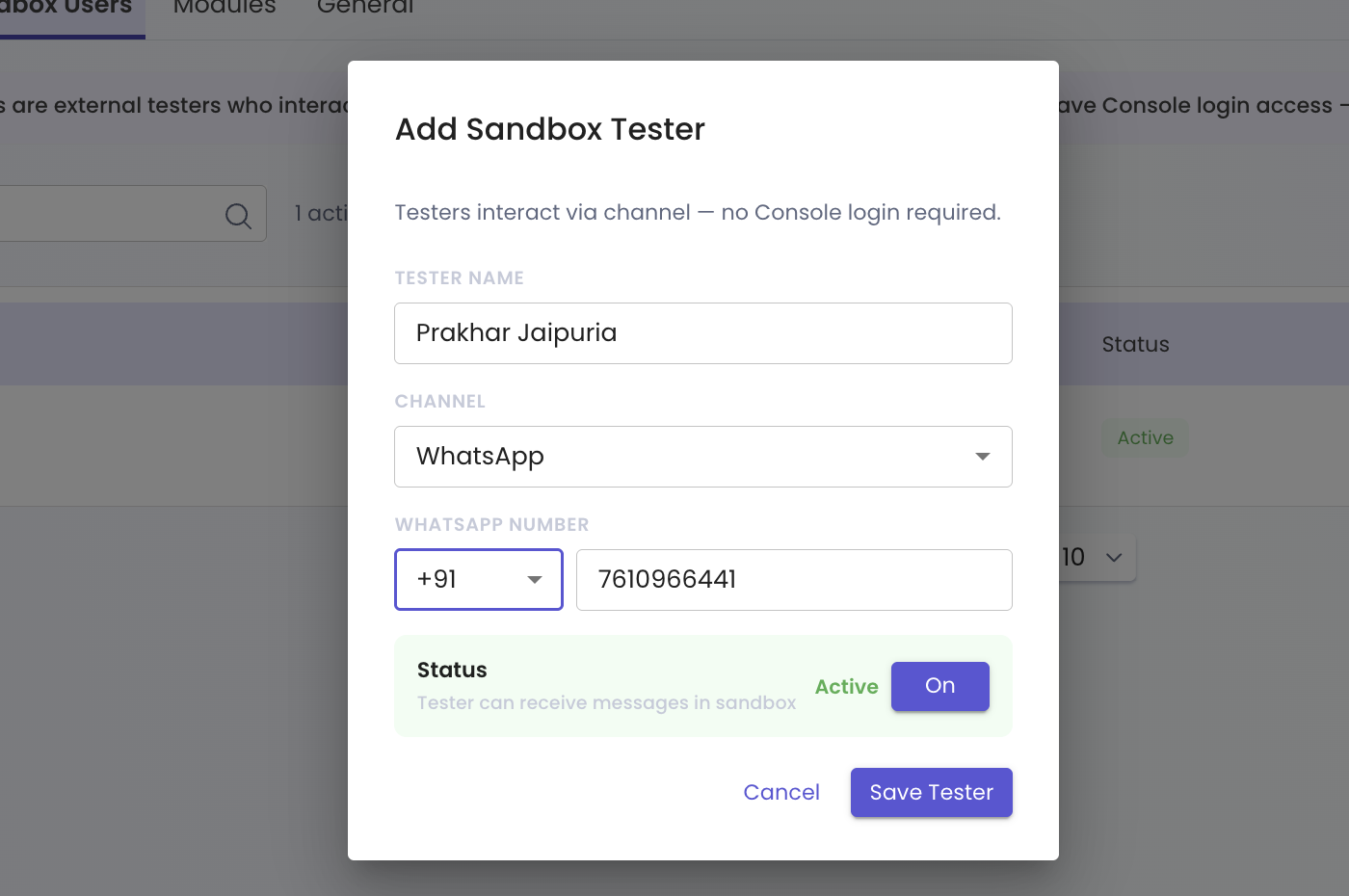
- Click Add Sandbox Tester. The Add Sandbox Tester dialog opens.
- Enter the tester name. This identifies the tester in the Sandbox Users list.
- Select WhatsApp as the channel. The dialog shows the WhatsApp number field.
- Select the country code and enter the tester's WhatsApp number. The tester can receive sandbox messages at this number.
- Set Status to Active and click Save Tester. The tester is ready to test sandbox journeys.
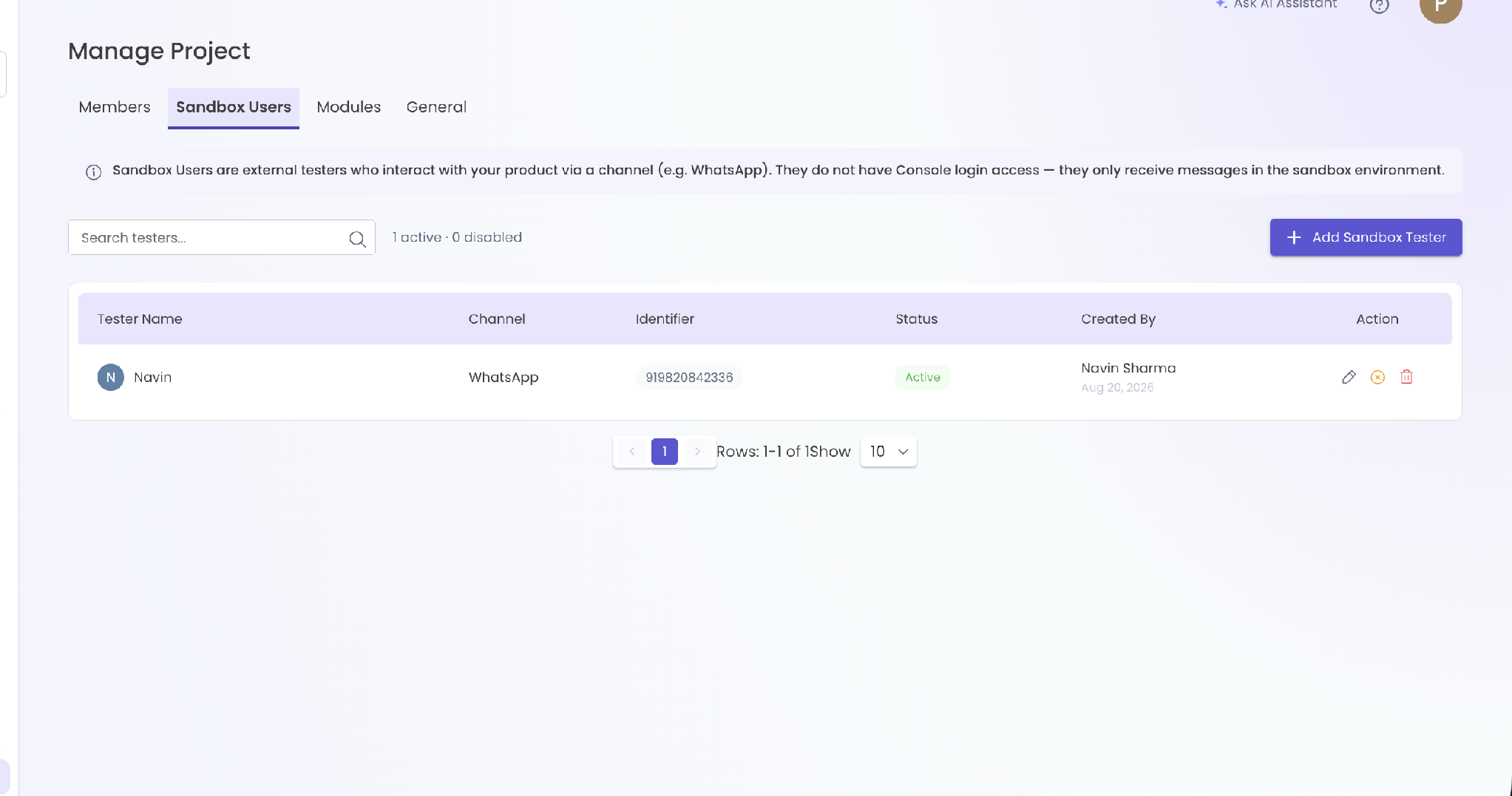
You can change a tester between Active and Inactive from Sandbox Users. Inactive testers do not receive sandbox messages.
2. Save the Journey
- Build or edit a User Journey on the Bot Studio canvas. Your changes remain in the editor until you save them.
- Click Save. Bot Studio stores the journey in the system without deploying it to sandbox or production.
Save your work regularly while you build the journey.
3. Deploy Selected Journeys to Sandbox
- Open the User Journeys tab on the Journeys page. The page displays Deploy to Sandbox and Go Live.
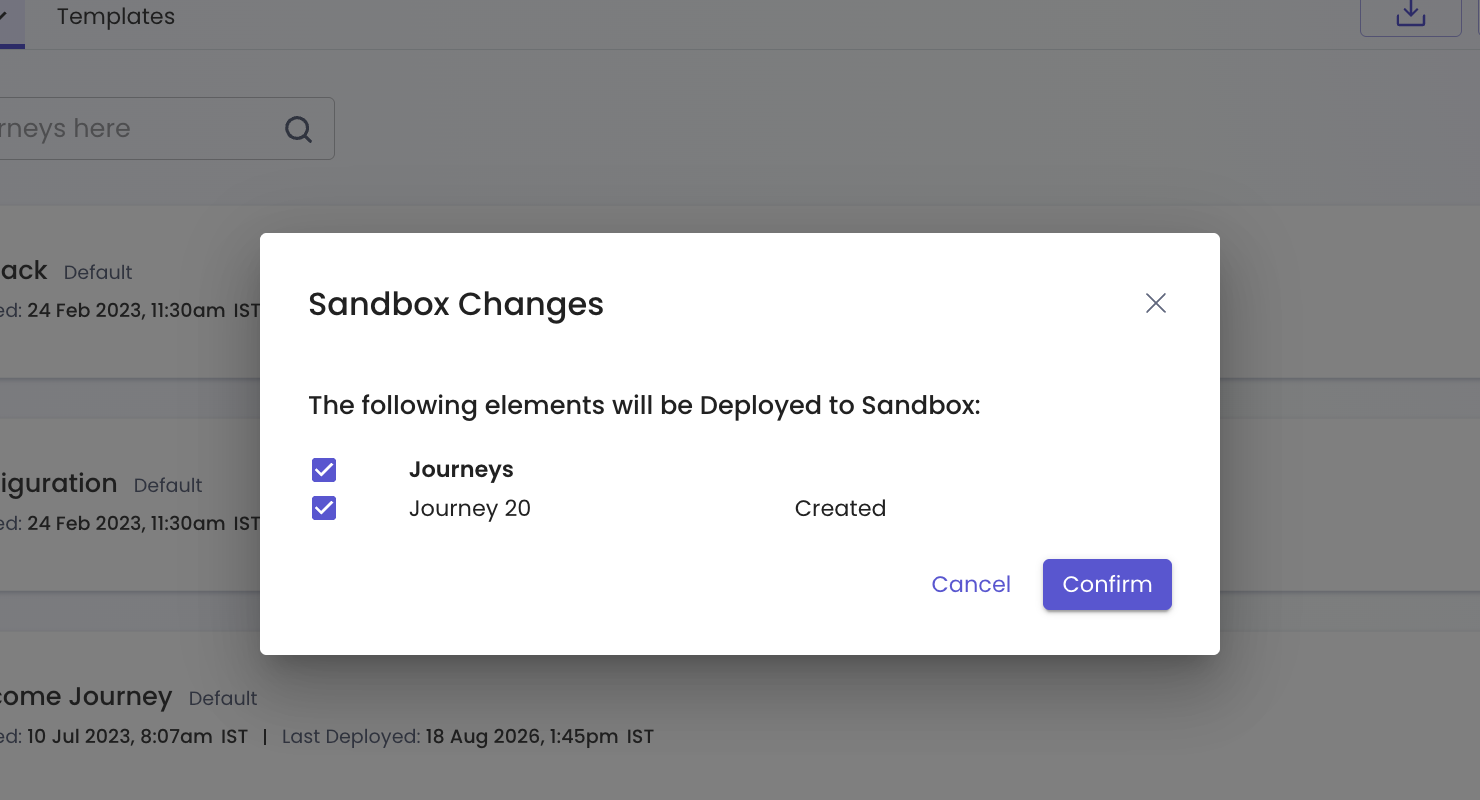
- Click Deploy to Sandbox. The Sandbox Changes dialog lists User Journeys that are ready to deploy.
- Select the journeys that you want to test. Only selected journeys are included in this sandbox deployment.
- Click Confirm. Bot Studio deploys the selected journeys to the sandbox environment.
Your active sandbox testers can now interact with the selected User Journeys on WhatsApp. Saved journeys that you did not select remain unchanged.

4. Go Live
- Finish testing each journey in the sandbox. Confirm that the expected WhatsApp messages and journey paths work for your testers.
- Click Go Live from the User Journeys tab. The Deploy Changes dialog lists the sandbox journeys that will deploy to production.
- Review the listed journeys. The dialog includes every journey currently deployed to sandbox.
- Click Confirm. Bot Studio deploys all sandbox journeys to production.
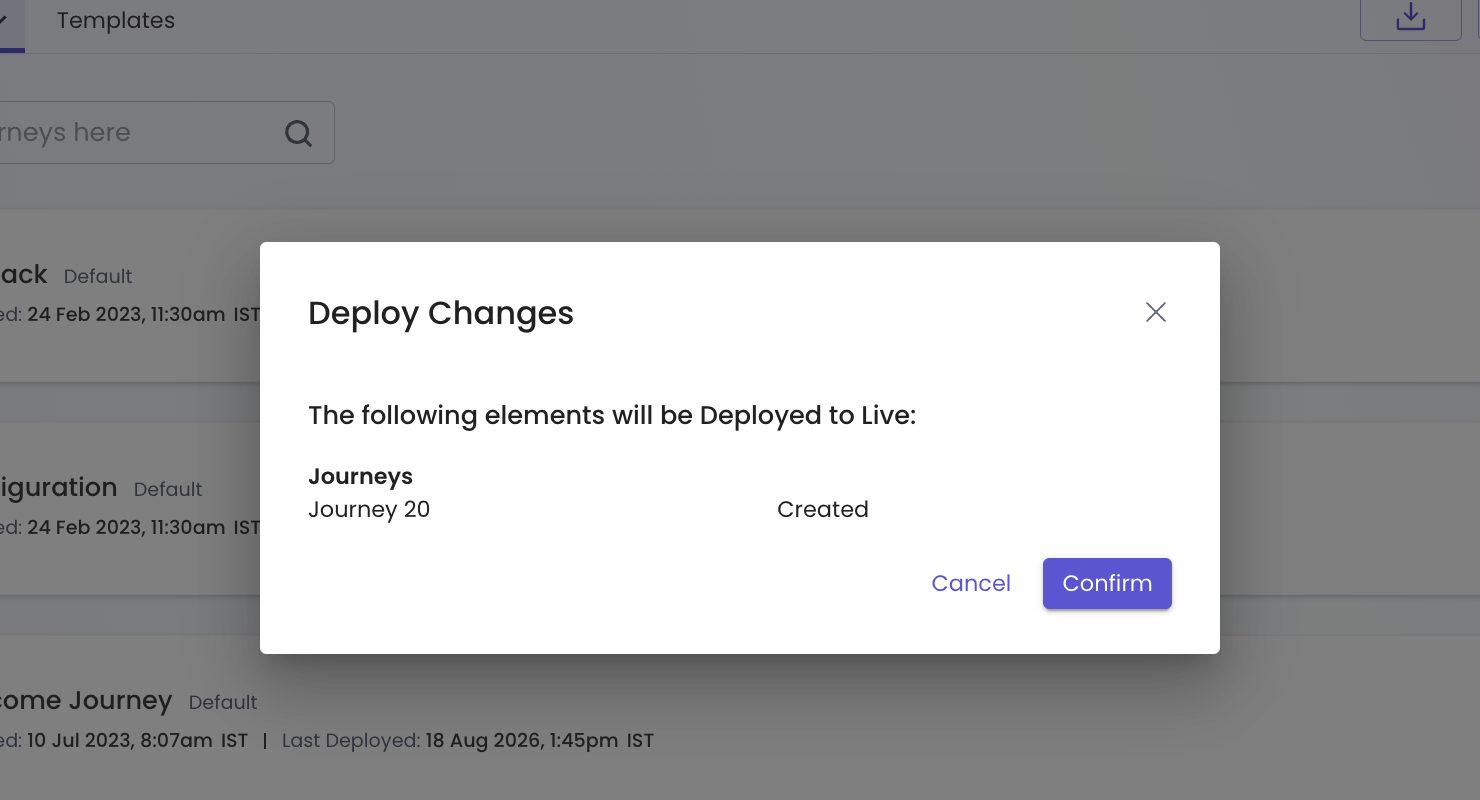
Go Live deploys every User Journey currently in sandbox. You cannot select individual journeys at this stage. Review the Deploy Changes list before you confirm.
Expected Result
- Save stores your User Journey without exposing it to testers or production users.
- Deploy to Sandbox makes only the selected User Journeys available to active WhatsApp sandbox testers.
- Go Live deploys all User Journeys currently in sandbox to production.
Troubleshooting
A tester does not receive sandbox messages
Open Manage Project → Sandbox Users and confirm that the tester has the correct WhatsApp number and an Active status. Then confirm that you selected the intended User Journey in the Sandbox Changes dialog.
A saved journey is not available for testing
Click Deploy to Sandbox, select the saved User Journey, and click Confirm. Saving a journey does not deploy it automatically.
A journey is not ready for production
Do not click Go Live until every journey listed in Deploy Changes is ready. Go Live promotes all sandbox journeys together.
Related Links
Updated 2 months ago