
Sending Marketing Templates from Agent Assist
Learn how to configure and enable agents to send WhatsApp-approved marketing templates to customers through Agent Assist, including setup, configuration, and usage instructions.
As brands increasingly prioritize WhatsApp for their sales operations, one of the most requested features is enabling agents to send WhatsApp-approved templates to customers, facilitating seamless communication. This functionality allows agents to initiate conversations with customers by selecting a pre-approved template, entering the customer's phone number, and then sending the template with a simple click.
Overview
Send approved WhatsApp templates directly to customers from the Agent Assist interface
Configure agent campaigns, set up journeys, and manage user permissions
Configuration Setup
Step 1: Navigate to Campaign Creation
Go to Settings > Workflow & Automation > Agent Campaigns > Create Campaign
Step 2: Configure Campaign Details
When you create a campaign, a popup will request:
- Campaign name: Choose a descriptive name for your campaign
- Template: Select from your approved WhatsApp templates
- Test phone number: Provide an internal number for testing (a template message will be sent to this number upon creation)
Step 3: Automatic System Actions
Once you create an agent campaign, the following happen automatically:
Campaign Manager Integration
All analytics associated with the campaign will be visible under campaign analytics in the Campaign Manager.
Bot Studio Journey Creation
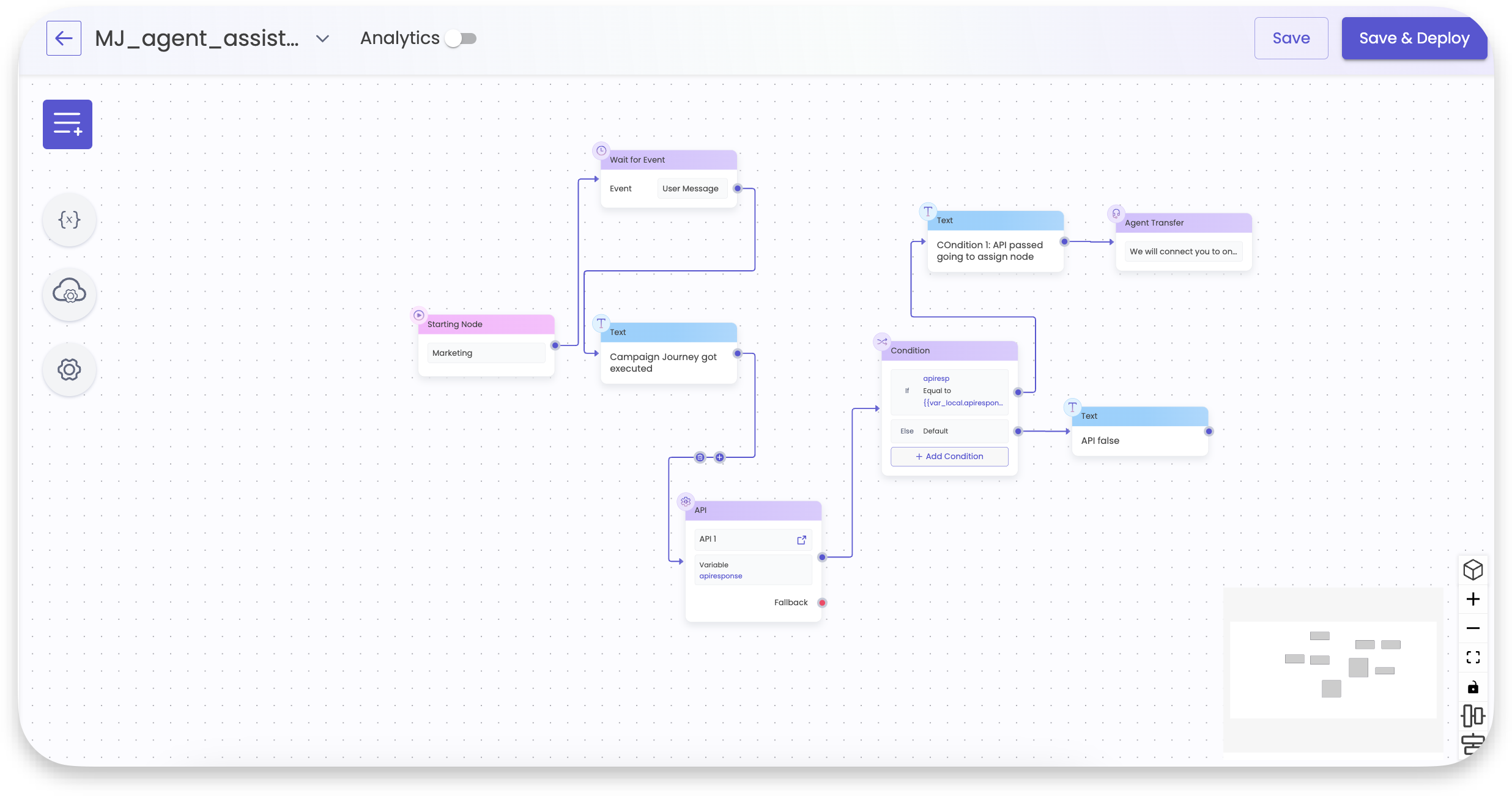
An interactive journey with an agent handover node is created in Bot Studio. When customers reply to agent-sent campaigns, they'll be routed through this newly created journey before agent assignment. You can edit this journey after creation if needed.
Enable Beta Features
Note: This is currently a beta feature
To activate this functionality:
- Send an email to [email protected]
- Request configuration for your brand
- Once enabled, navigate to Journey Builder within Campaign Journey
- A journey named "Agent Assist" will be created automatically
When customers respond to templates sent by agents, they will enter this journey, allowing you to:
- Assign chats to agents
- Route conversations to other journeys
Configure Access and Settings
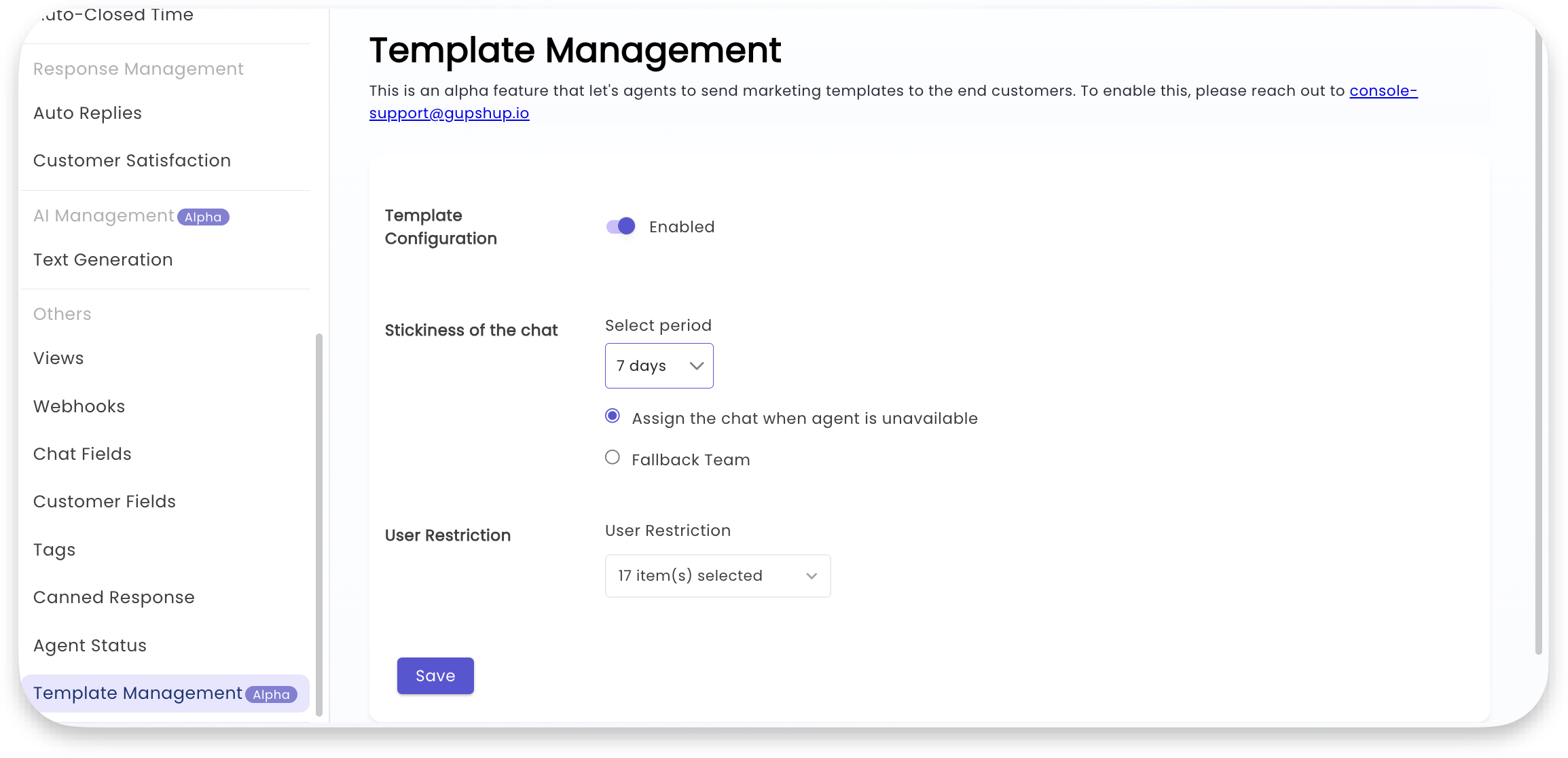
After setting up the journey, navigate to Agent Assist > Agent Campaigns > Campaign Properties to configure:
Stickiness Settings
Chat Stickiness determines the time period within which returning customers will be assigned to the same agent who sent the original template.
Additional Options:
- Choose whether chats should be assigned to the same agent even if unavailable
- Set up fallback team routing based on team policy
User Restrictions
Agent Selection: Use the dropdown menu to restrict this feature to specific agents, providing granular control over who can send marketing templates.
Using the Feature
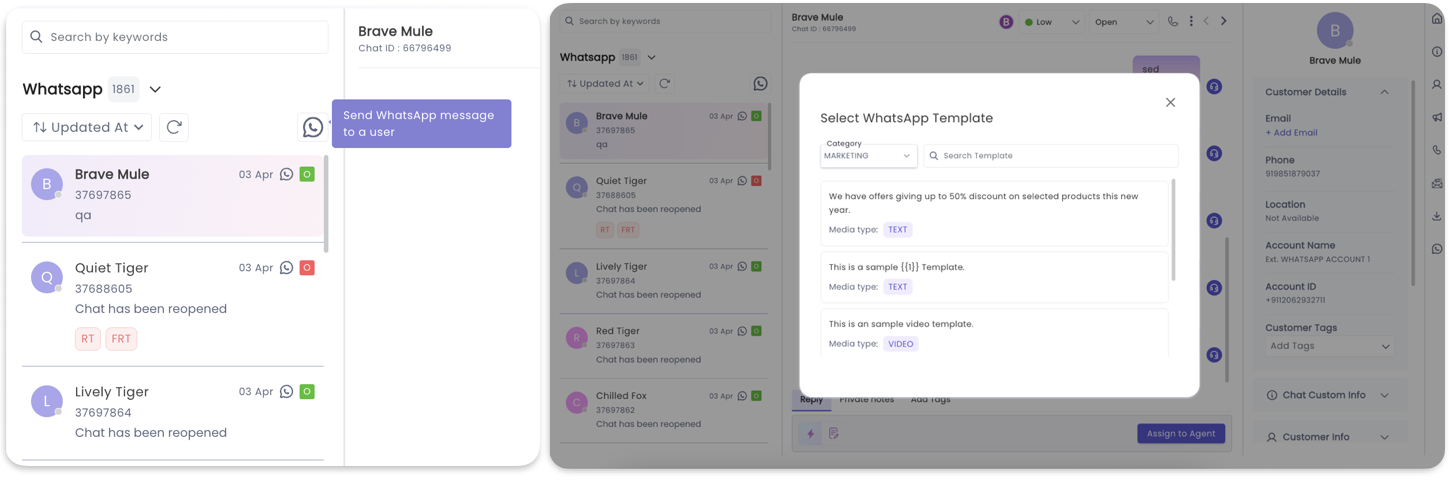
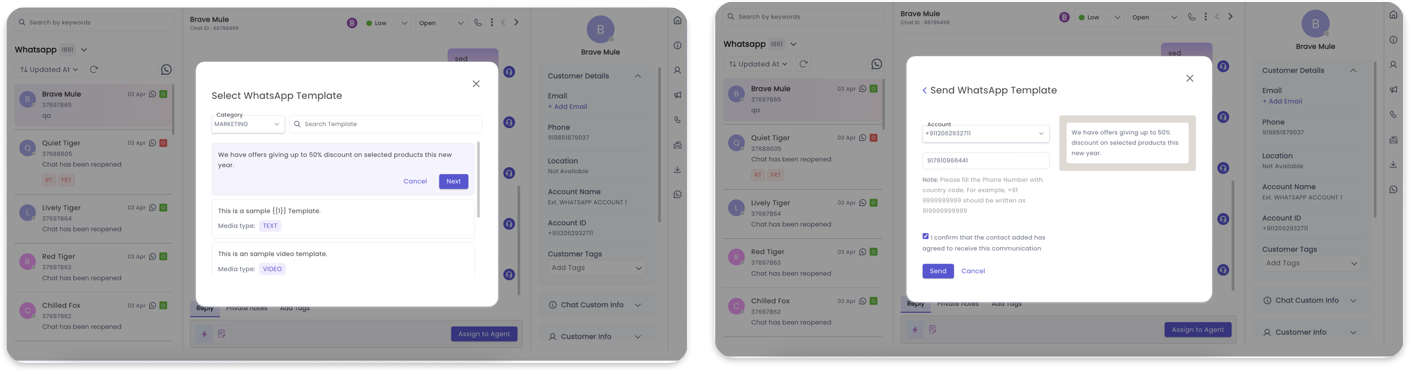
For Agents: Sending Templates
Troubleshooting Common Issues
Template Sending Error
If an agent encounters an error while sending a template, it may be due to an existing open chat with the same customer that isn't assigned to the sending agent.
Solution: The agent needs to assign the existing chat to themselves before attempting to send the message.
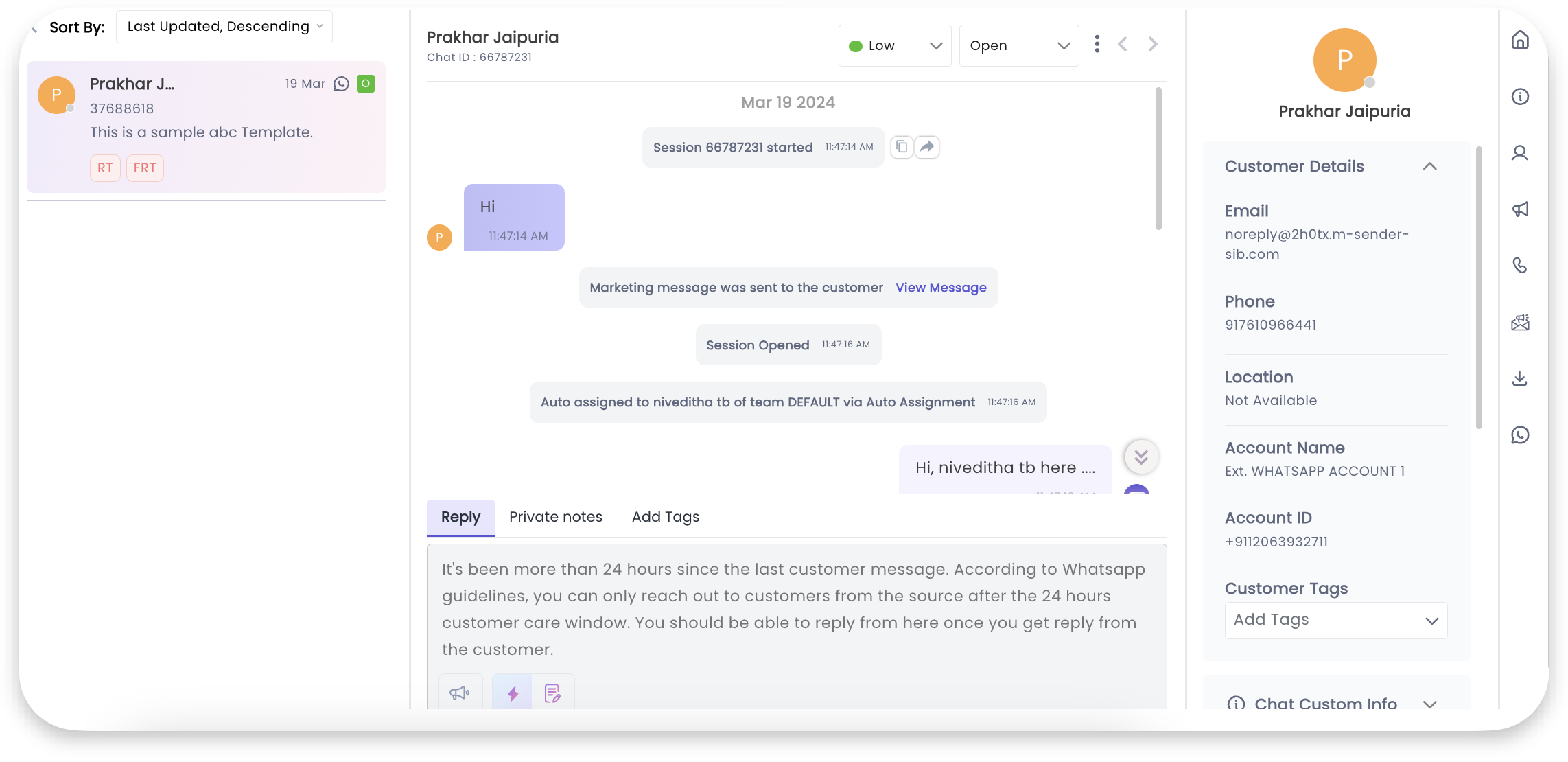
Managing Customer Responses
When customers reply to marketing templates:
- System Notification: Agents will see a system message indicating the conversation contains a marketing message
- Template Identification: Click on the marketing message or use the campaign context button in the right panel
- Template History: View all templates sent to the customer for context
Key Benefits
Enable agents to initiate WhatsApp conversations with pre-approved templates
Use only WhatsApp-approved templates to ensure messaging compliance
Track campaign performance through integrated analytics and reporting
Next Steps
After setting up marketing templates in Agent Assist:
- Monitor campaign analytics in the Campaign Manager
- Adjust journey flows in Bot Studio as needed
- Train your agents on the new functionality
- Review and optimize stickiness and routing settings based on performance
Updated 11 months ago